
SkyComm Support works on Windows computers only. If you are using a Mac, iPad or phone, please call us on 1800 957 977 and we will help you another way.
Get help from SkyComm
Your SkyComm technician will read you a 9-digit support key. Type it below to get started.
Only continue if you asked SkyComm for help or you are expecting our call. If someone you do not know asked you to visit this page, close it and call us on 1800 957 977.
Your technician from SkyComm is ready to help you
This session is for .
For Windows. The file is called SkyComm-Support.exe. This download link only works for a short time. If it has stopped working, enter your key again.
This computer does not look like a Windows PC, so the download will not run here. Please call us on 1800 957 977.
What happens next
-
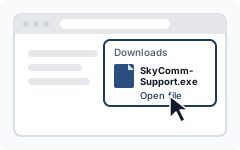
1 Run the file
Open the file you just downloaded. You can usually click it at the top or bottom of your browser, or find it in your Downloads folder. If Windows asks whether to run it, the publisher shown is SkyComm Cloud Pty Ltd. That is us.
-
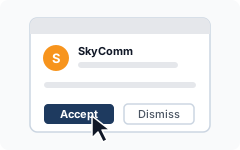
2 Click Accept when SkyComm asks
A small window will ask whether to let SkyComm connect. Click Accept. Your technician can then see your screen and use your mouse and keyboard.
If Windows asks whether to allow changes to your device, clicking Yes lets your technician help with admin tasks. You can click No if you would rather not.
-
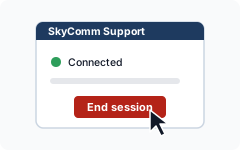
3 Click End session when you are done
The SkyComm Support window stays on your screen while we help. Click End session at any time to stop. Closing that window does the same.
Your privacy
Running SkyComm Support lets the SkyComm technician named on this page see and control this computer while the session is open. Sessions are recorded, and recordings are kept securely for 30 days and then deleted. You can end the session at any time. When it ends, SkyComm Support removes itself and nothing stays installed.
Questions? Email help@skycomm.com.au or call 1800 957 977.